Compress a JPG online
Shrink JPG (JPEG) photos to a fraction of their size with a quality level you control — the before/after preview shows the exact result before you download. Everything runs in your browser; nothing is uploaded.
Result appears here
Output is larger than the original — try a lower quality or the WebP format.
How to compress an image
- 1. Drop your image onto the tool or click to choose a file. It compresses immediately — there is nothing to upload first.
- 2. Move the quality slider and watch the file size update. The preview shows exactly what you will get.
- 3. Hit Download. The file is saved straight from your browser, named after the original.
Supported formats
| Format | Open as input | Save as output | Good to know |
|---|---|---|---|
| JPG / JPEG | Yes | Yes | Lossy — the quality slider applies. No transparency (flat areas become white). |
| PNG | Yes | Yes — Auto keeps PNG | Lossless — the quality slider is ignored. Transparency kept. |
| WebP | Yes | Yes | Usually the smallest file overall; transparency kept. |
| AVIF | Yes (recent browsers) | Saved as WebP | Browsers decode AVIF but can't encode it yet — details in the compatibility section below. |
Settings explained
- Quality (1–100%)
- Controls how much detail JPEG and WebP output keeps. PNG is lossless, so the slider is ignored for PNG output.
- Output format
- Auto keeps the original format. Choosing JPEG or WebP re-encodes regardless of input.
Output behavior
- Pixel dimensions are never changed — a 1920×1080 input stays 1920×1080.
- EXIF, GPS and camera metadata are stripped from the output.
- Transparent areas are preserved in PNG and WebP; JPEG output flattens them to white.
- At very high quality settings an output can occasionally be larger than the input. The tool tells you when that happens instead of silently handing you a bigger file.
Real compression results
Measured by encoding the same 1600×1000 test image at each setting, using the quality scale the tool exposes. Your file sizes will differ — the ratios are what matter.
| Setting | File size | vs. original |
|---|---|---|
| Original — JPEG · quality 90 | 91 KB | — |
| JPEG · quality 40 | 37 KB | 60% smaller |
| JPEG · quality 75 | 60 KB | 35% smaller |
| JPEG · quality 95 | 133 KB | 45% larger |
| WebP · quality 75 | 24 KB | 74% smaller |
| PNG · lossless | 133 KB | 45% larger |
What quality settings look like
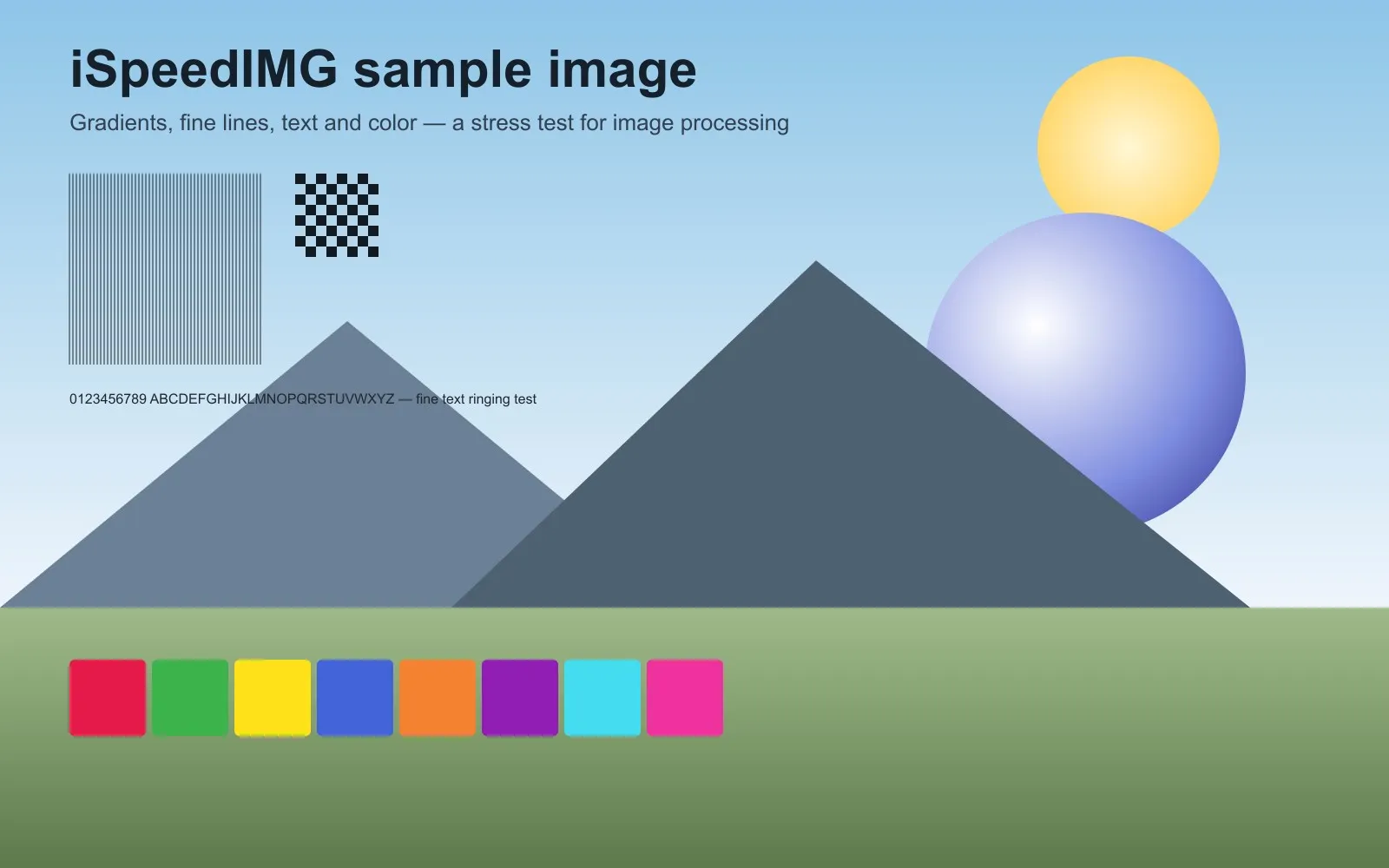
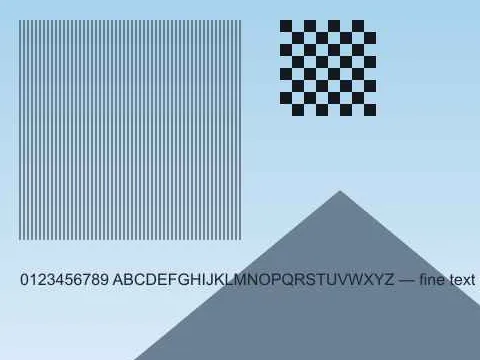
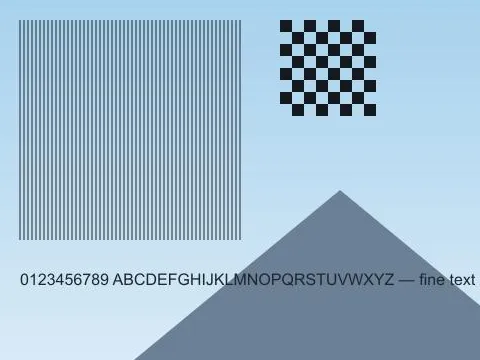
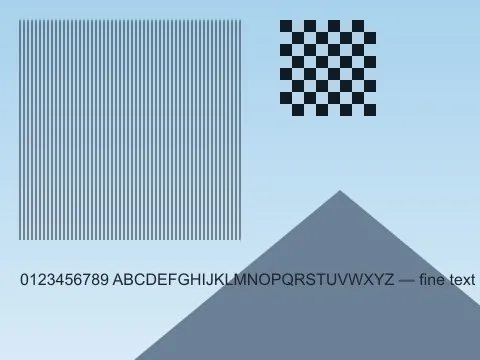
Privacy
This tool works completely offline in your browser. Your image is read into memory, re-encoded locally, and offered back to you as a download. Nothing is transmitted to any server, and closing the tab discards everything.
Browser & device compatibility
- JPG, PNG and WebP work in every modern browser.
- AVIF input needs a recent browser — current Chrome, Edge, Firefox or Safari 16+. On older browsers you'll see a clear message instead of a broken result.
- Very large images (100+ megapixels) can exceed the memory of older phones and tablets — processing happens on your device, so your hardware sets the ceiling.
Troubleshooting
- "That file type isn't supported" — the file isn't a JPG, PNG, WebP or AVIF image. Rename or re-export it first.
- "Your browser couldn't decode this file" — the type is recognized but this browser can't read it (often AVIF on an older browser), or the file is corrupted.
- Very large images are slow or fail — processing uses your device's memory; see compatibility above.
- Output looks identical but barely smaller — the file was probably already well-compressed. Try WebP output or a lower quality value.
Related tools
- Resize Image — Change dimensions in pixels with aspect ratio preserved.
- Convert Image — Convert between JPG, PNG, WebP and AVIF without uploading a thing.
- Remove EXIF — Strip EXIF, GPS location and hidden metadata from photos — lossless and private, on-device.
Frequently asked questions
How do I make an image file smaller?
Drop your image above, adjust the quality slider until you like the balance of size and detail, then download. Most photos look fine at 70–85% quality while getting dramatically smaller.
How can I compress image size without losing quality?
Set the quality slider around 75–85% — most photos look identical to the original at that level while the file becomes dramatically smaller. The before/after preview shows you the exact trade-off before you download, and the comparison table below shows real measured results.
Will compressing an image reduce its quality?
JPEG and WebP compression is lossy — some data is discarded to save space. At moderate quality levels (70–85%) the difference is usually invisible. You preview the exact result before downloading, so you stay in control. The 'What quality settings look like' section below shows real examples.
Why is my PNG barely getting smaller?
PNG is a lossless format, so the quality slider does not apply to it. For PNG screenshots and graphics, switch the output format to WebP — it typically shrinks them significantly while staying visually identical.
Are my images uploaded to a server?
No. Compression runs entirely in your browser using your device's own processor. Your images never leave your computer or phone.
What happens to EXIF and GPS metadata?
Re-encoding strips metadata such as camera details and GPS coordinates from the output. That is good for privacy — and one more reason the download is smaller than the original.
How do I compress a JPG?
Drop the JPG into the tool, move the quality slider and watch the file size update live, then download. Most photos look identical at 70–85% quality while the file gets dramatically smaller.
Can I compress a JPEG without losing quality?
JPEG compression is lossy by design — every JPEG file was already compressed when it was saved. This tool keeps the loss invisible: at 75–85% quality the difference is undetectable for photos, and you compare the compressed copy against the original in the preview before downloading. No new compression is applied twice — save the result and you are done.